
xr/studio Documentation
Screen UI & GUI Entities
Build heads-up display panels, buttons, and labels that stay fixed on screen using GUI entities.
What GUI entities are
GUI entities are UI elements that sit in front of the 3D scene, fixed to the screen, like a HUD. Use them for navigation menus, info overlays, hotspot labels, loading screens, and any interface that should not move with the scene.
Screen UI vs World UI
Screen UI: Entities positioned in 2D screen space. They stay in place as the user moves the camera. Best for menus, overlays, and persistent interface elements.
World UI: Entities positioned in 3D world space and rendered as a flat panel. They appear at a specific point in the scene and can face the camera. Best for hotspot labels and contextual info.
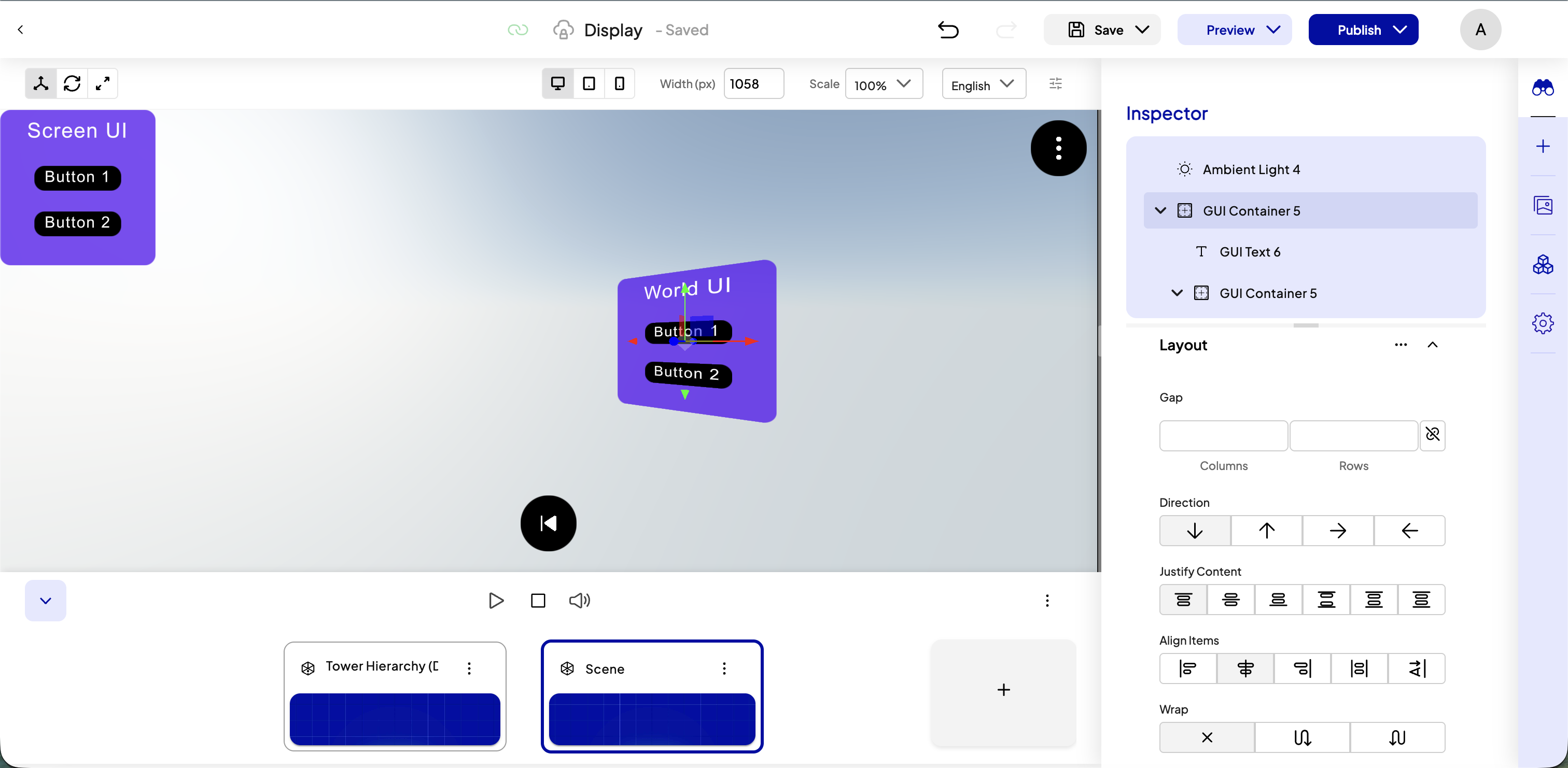
Building a layout
GUI layouts work like Figma or CSS Flexbox. Add a Container entity, set its direction (row or column), and drop child entities inside. Children stretch or wrap based on the alignment settings.
Supported GUI entity types include: Container, Text, Image, Button, Input field, Scroll panel, and Video.
- Add a Screen Container entity from the Add menu.
- Set its position (anchor), e.g. top-left, bottom-centre.
- Add child entities (Text, Image, Button) inside the container.
- Adjust padding, gap, and alignment in the inspector.
Clicks and what is behind them
A GUI box catches clicks across its whole area, including the parts you cannot see. A full-screen container laid over a scene will therefore take every click meant for the 3D behind it, which is the usual reason hotspots stop responding after a panel is added.
Each GUI entity has a Pointer → Clicks setting in the inspector to control this:
| Setting | What it does |
|---|---|
| Automatic | The default. An empty container passes the click through. A container that shows a background or a border, that scrolls, or that has an action or a hover style, catches it |
| Blocks clicks | The box always catches the click |
| Click through | The box never catches the click, and its children keep their own |
Click through is what you want for a HUD frame: the panel itself lets clicks reach the scene, while the buttons inside it keep working.
If a container looks invisible but still swallows clicks, check its background opacity. A background colour with the opacity left at 1 is fully opaque, so Automatic treats it as something you can see and lets it catch the click. Set the background opacity to 0 and clicks pass through.
The Screen entity is always click-through, so the root of your interface never blocks the scene.
Clicks is a normal GUI property, so you can set it per breakpoint and per hover state.
Responsive breakpoints
GUI entities support breakpoints (desktop, tablet, mobile). Switch the preview resolution in the top bar and adjust positions or sizes per breakpoint. Only breakpoints you change override the defaults.