
xr/studio Documentation
Entities
Work with the hierarchy: entity types, parenting, selection, and inspector basics for everything inside a scene.
What entities are
Everything visible or interactive in a scene is an entity: the camera, lights, 3D models, panorama layers, GUI buttons, audio sources, splats, hotspots, and groups. The hierarchy lists them as a tree. Parent entities group children so transforms move them together.
The hierarchy
Open the Inspector sidebar and use the Scene entity list to see every entity in the active scene. Click a row to select that entity. Drag a row onto another to reparent: the child inherits the parent’s transform (position, rotation, scale in local space).
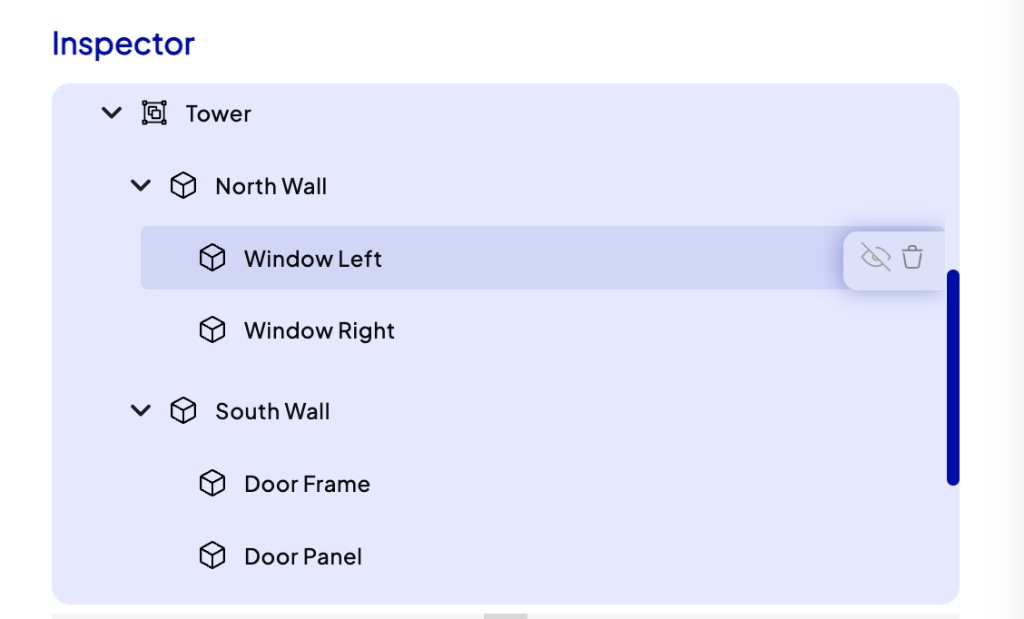
Use the eye icon to hide an entity in the editor without deleting it.
Adding entities
From create menus: use toolbar or context menus to add primitives (cube, sphere, plane), lights, cameras, GUI containers, hotspots, and other types without uploading first.
From the Asset Manager: drag an image, video, model, audio file, Lottie animation, or splat into the scene or hierarchy. Studio creates the right entity type for the scene type and asset (see Assets).
Duplicates: select one or more entities and duplicate (standard shortcuts where enabled) to copy inside the same scene or paste into another scene.
Entity types at a glance
xr/studio supports many specialised types: geometry (meshes, primitives), media (panorama, flat image/video, splats), GUI (screen or world UI), lights, cameras, audio, hotspots, maps, players, and more. Each type exposes different inspector sections (material, physics, actions, animation tracks).
You don’t need every type for every story. Start with what your scene layout requires (for example a camera + light + one hero mesh), then add GUI or interactions.
Inspector
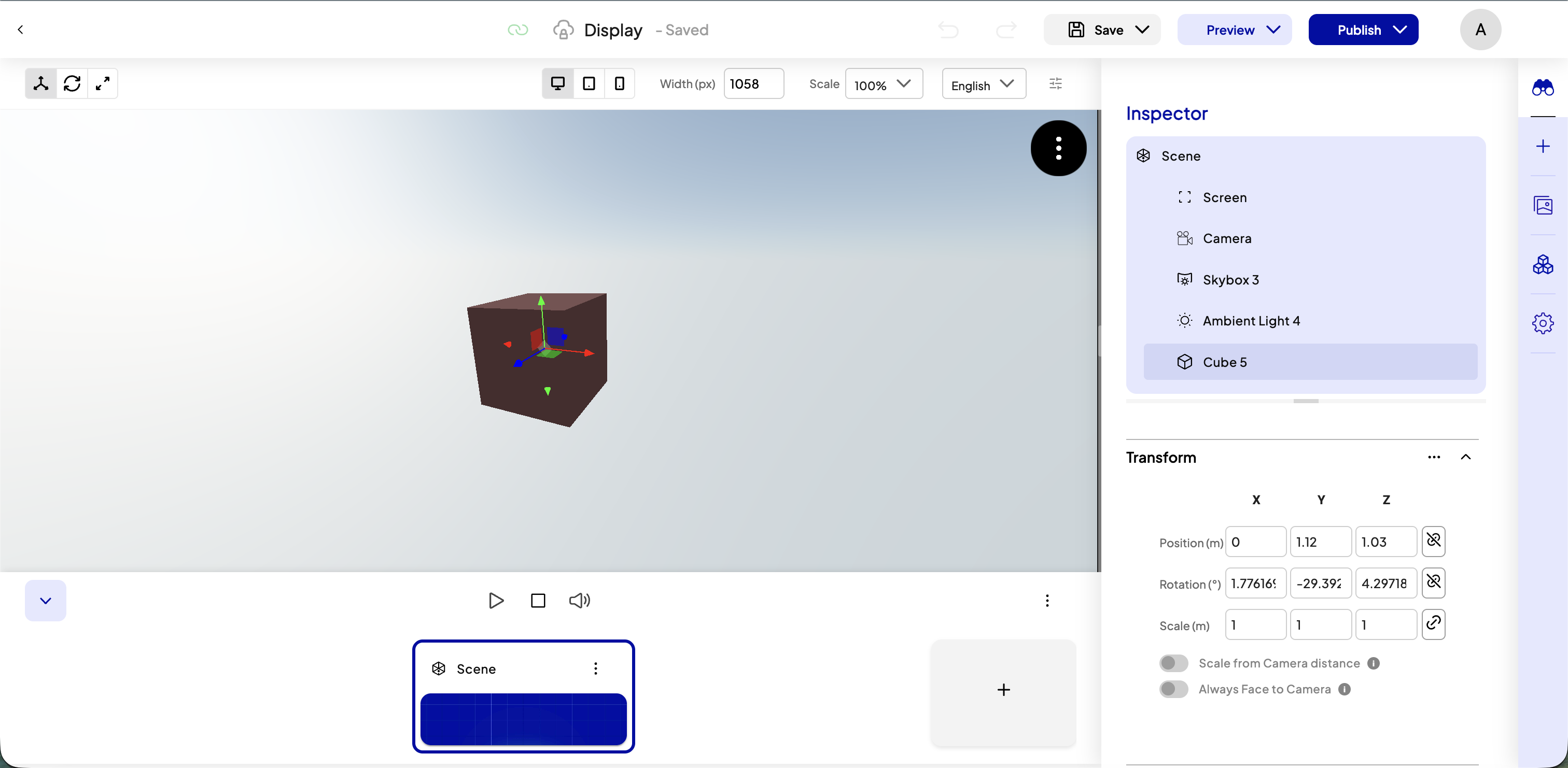
With an entity selected, the inspector shows type-specific fields: transform, materials, visibility, tags (for actions), timeline-related tracks, and attached actions. Scene-level settings appear when you select the scene node instead of an entity (see Scenes).
Player entity and VIVERSE avatars
In 3D Scene and related scene types, the Player entity controls the visitor's body in immersive modes. Open Player in the inspector to pick a character model asset and tune movement, physics, and camera height.
Use the Avatar dropdown to choose what visitors see in VR:
- Character Model — the GLB you assign below (default).
- Visitor's VIVERSE Avatar — visitors signed in through a VIVERSE listing see their own VIVERSE avatar instead.
Everyone else, including visitors on the Cyango link alone, still sees the character model. Assign a VIVERSE-compatible rigged humanoid when you plan to use the VIVERSE avatar option.
Tags and actions
Many behaviours attach at entity level: click events, media playback, property tweens. Actions often target entities by id or by tag. Give entities clear names and tags early so actions stay easy to maintain (see Actions).