
xr/studio Documentation
Editor Basics
Navigate the active scene, hierarchy, and inspector. Learn to move, rotate, scale entities and use undo, redo, autosave, and version history.
The interface at a glance
The editor is divided into 5 main regions, annotated by colour below.
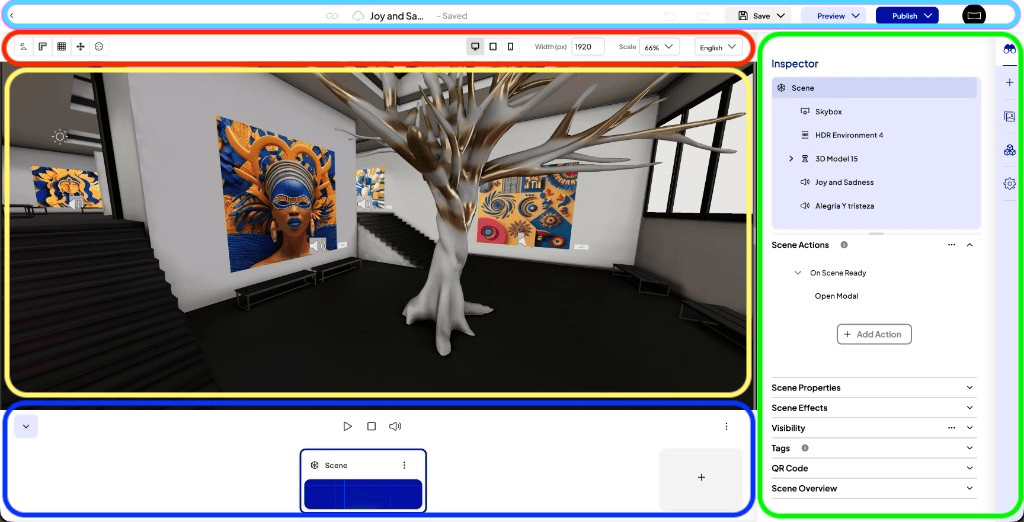
- Story header (light blue) contains story-wide actions: story title and save status, undo/redo, Save, Preview, Publish, and account.
- Transform & viewport toolbar (red) controls editor modes, including transform tools, breakpoints, viewport options, and language.
- Scene viewport (yellow) is where you view and edit the active scene: orbit, pan, zoom, and place content.
- Inspector sidebar (green) brings together inspector, hierarchy, and asset workflows. The vertical icons switch between Inspector, entities, assets, prefabs, and story settings.
- Scenes & playback strip (dark blue) combines preview playback with Scenes, where you pick the active scene, reorder scenes, and add new ones.
Resize regions where handles are provided; use the View menu to show or hide panels where supported.
The active scene (canvas)
The canvas is the live view of the active scene. They are the same editing surface: what you see in the centre is the scene you are working on. Pick a different scene from the Scenes strip at the bottom to switch what appears here.
Orbit with right-click drag. Pan along the horizontal plane forward, back, left, and right with left-click drag. Hold Alt while left-click dragging to move vertically (Option ⌥ on macOS). Zoom with the scroll wheel or trackpad scroll.
This view closely matches the published experience: what you see is what viewers get, accounting for the camera you configure.
The hierarchy
The hierarchy shows all entities in the scene as a tree. Click to select, drag to reparent. Use the eye icon next to an entity to hide it in the editor without deleting it.
Move, rotate, and scale
Select an entity and use the transform gizmo in the active scene. Switch modes with the toolbar buttons or keyboard shortcuts: G = Move, R = Rotate, S = Scale. Drag handles on the gizmo to move along a single axis.
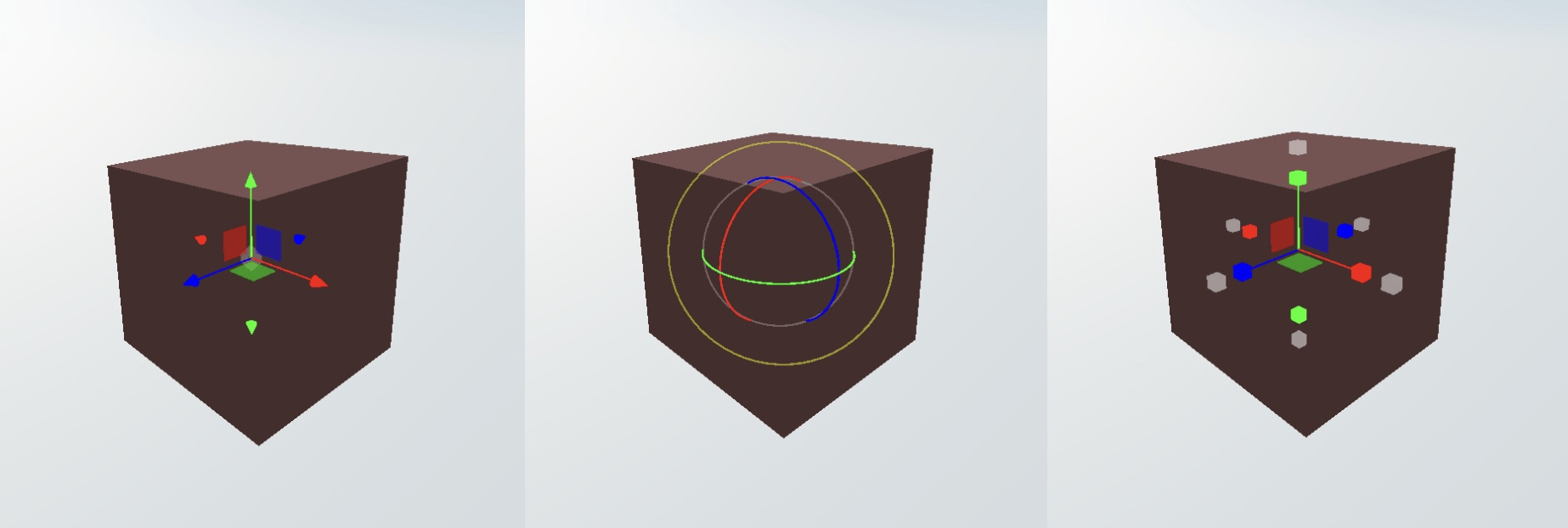
For precise values, type directly into the Position, Rotation, or Scale fields in the inspector.
- Click an entity in the active scene or hierarchy to select it.
- Press G, R, or S to switch to Move, Rotate, or Scale.
- Drag the gizmo handles in the active scene, or type values in the inspector.
Multi-select and copy/paste
Hold Shift and click to add to the selection, or Ctrl/Cmd and click to toggle an entity in or out. Copy with Ctrl/Cmd+C, paste with Ctrl/Cmd+V. You can paste into the same scene or into a different scene, even across different stories.
Undo, redo, and autosave
Use Ctrl/Cmd+Z to undo. Redo with Ctrl+Y on Windows or Cmd+Shift+Z on macOS. Save with the Save button in the story header or Ctrl/Cmd+S. Auto Save is optional—turn it on from the Save dropdown to persist changes automatically after a short delay.
Version history
Each save keeps the previous version of your story, and each publish keeps a version too. You do not need to do anything. To see the versions, open the Save dropdown and click Version history. You can also open the story's menu on the stories page and click Version history. The dialog shows the current draft and the versions by day.
- Preview opens the version in the Player, in a new tab.
- Restore this version replaces your story with it. The story you replace is kept as a Before restore version, so you can undo the restore. A restore does not publish.
- Name this version keeps it until you delete the story.
All saves of the last 24 hours are kept. After that, one version per hour is kept for 7 days, then one per day. Free keeps versions for 7 days, Pro for 90 days, and Enterprise with no limit. Published versions and named versions are always kept.