
xr/studio Documentation
Assets
Upload and manage files in the Asset Manager. Learn what formats are supported and how Studio processes your uploads.
Asset Manager
The Asset Manager holds every file for your workspace. Everything you upload (images, videos, 3D models, Gaussian splats, Lottie animations, audio files, and fonts) is stored here and can be reused across all stories in the workspace.
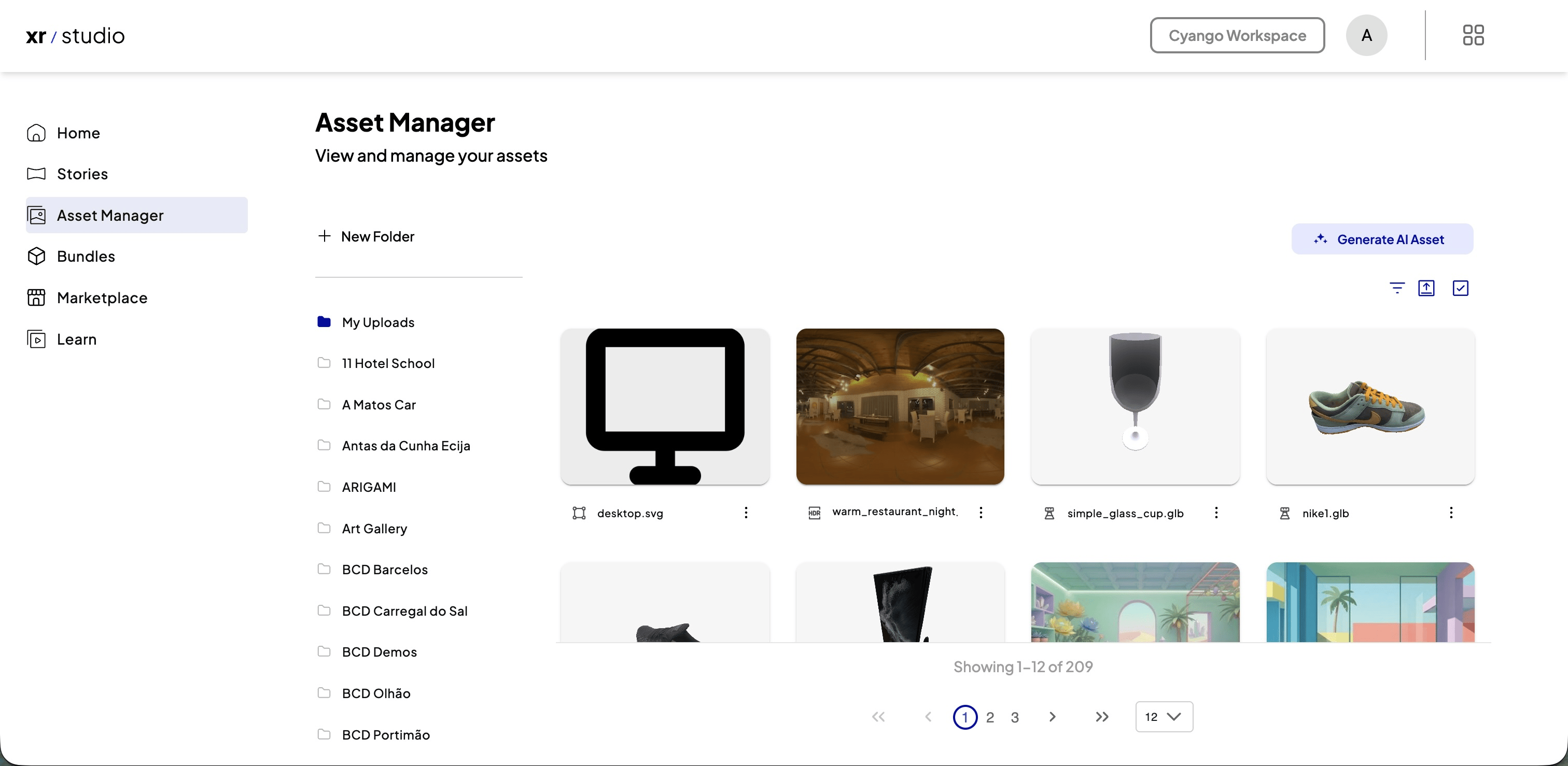
Uploading files
Drag files from your desktop onto the Asset Manager panel, or click Upload and pick files from your device. Multiple files can be uploaded at once.
Maximum file size per file is 2 GB.
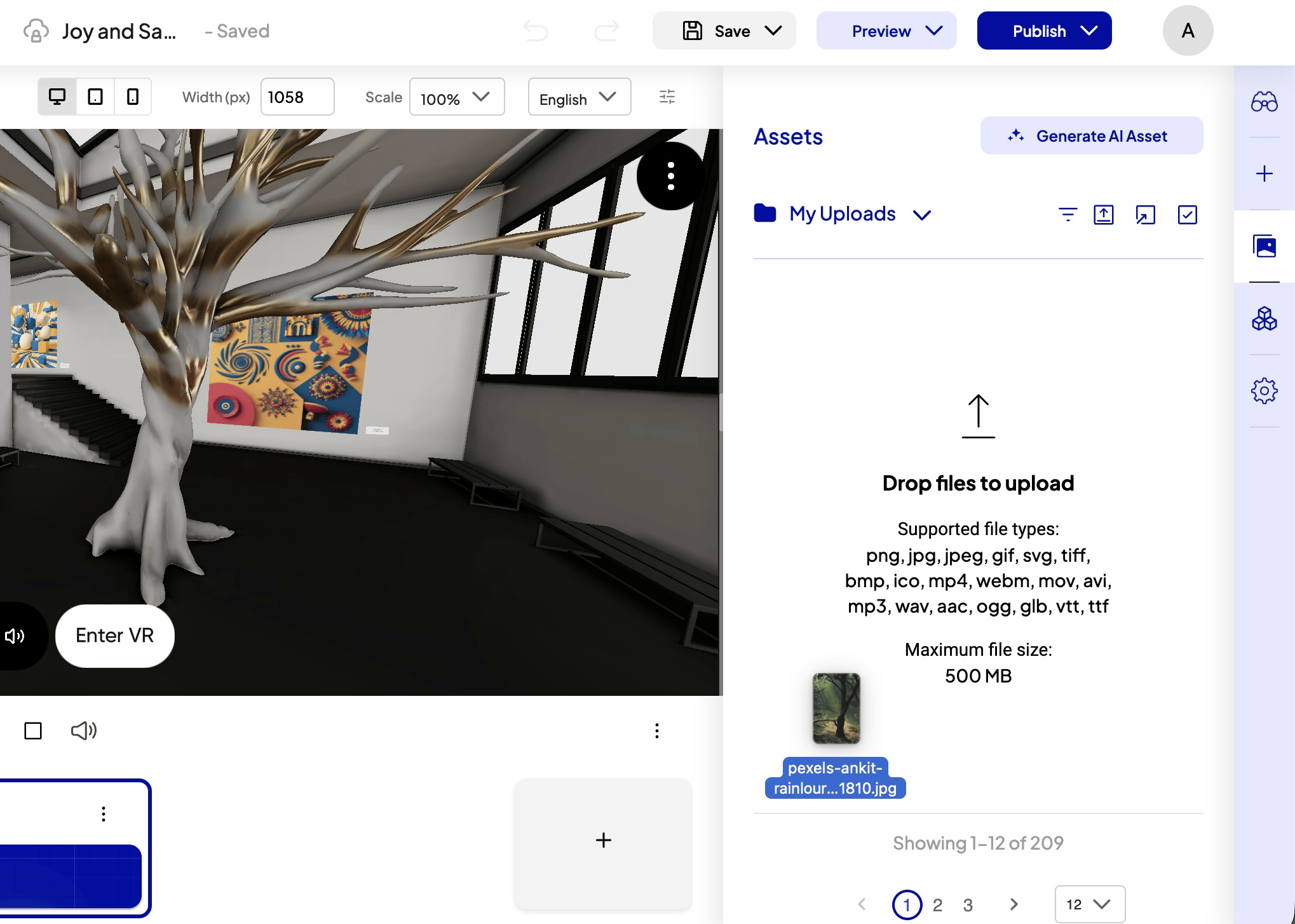
- Open the Asset Manager panel.
- Drag files from your desktop onto the panel, or click Upload.
- Wait for processing to complete. A progress indicator shows status.
- The processed asset is ready to use in any scene.
Tip: Large 3D models and high-resolution videos take a minute to process. You can keep editing in the meantime.
Supported file types
These are the extensions xr/studio accepts for new uploads in the Asset Manager or when you drag files into the editor:
- Raster images: BMP, GIF, JPEG, JPG, PNG, TIFF, WebP
- HDR environment maps: HDR, EXR
- Vector: SVG
- Video: MOV, MP4, WEBM
- Audio: AAC, MP3, WAV
- 3D models: GLB
- Gaussian splats / splat formats: KSPLAT, PLY, SOG, SPLAT, SPZ
- Subtitles: VTT
- Fonts: TTF
- Lottie animations: JSON (Bodymovin)
360° and panoramic media use the same image or video formats above (typically equirectangular video or image).
After upload, Studio may convert assets for playback on the web (for example videos to adaptive streams such as HLS and WebM, GLB models through optimisation, splats through streaming formats, Lottie JSON through raster previews). You don't need to manage conversion yourself.
Organise with folders
Create folders inside the Asset Manager to keep assets organised. Right-click in an empty area to create a folder, then drag assets into it. Folder structure is per-workspace.
Adding assets to a scene
Drag an asset from the Asset Manager into the active scene or hierarchy while upload or processing is still in progress. You can keep editing while conversion finishes in the background.
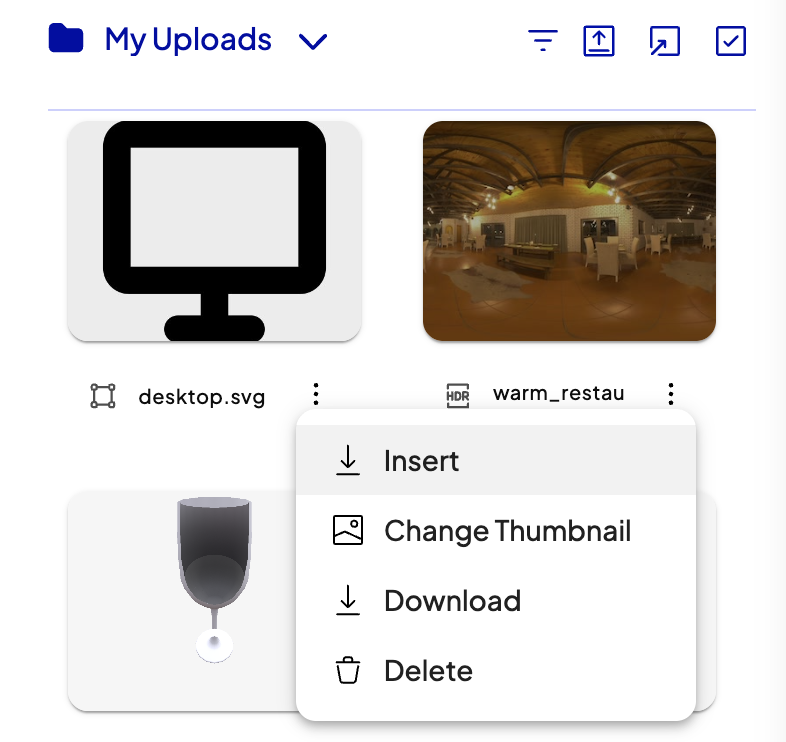
Or open an asset’s menu (⋯) in My Uploads and choose Insert to place it in the active scene.
You can also drag files from your desktop straight into the scene or hierarchy. Studio registers them in the Asset Manager and lets you place entities the same way.
Studio picks the entity type from the asset and the scene you are in. For example the same video file can become a panorama video in a 360° workflow, or a GUI video in a 3D scene. Flat scenes prefer a flat video or flat image as the first full-frame layer, then extra drops become GUI video or GUI image.
Entity types you can get when dropping or placing an asset:
| From this asset kind | Entity types (depends on scene and media shape) |
|---|---|
| Raster image (BMP, GIF, JPEG, PNG, TIFF, …) | Panorama (360° still), Panorama 180 (in a 180° panorama scene), Flat image (first layer in a flat scene), GUI image (most 3D scenes, or additional layers in a flat scene) |
| Video (MOV, MP4, WEBM) | Panorama video, Panorama 180 video, Flat video, GUI video |
| HDR (.hdr, .exr) | HDR |
| Vector (SVG) | Flat image, GUI vector, or GUI image |
| Audio (AAC, MP3, WAV) | Audio global |
| 3D model (GLB) | Custom 3D model |
| Gaussian splat / splat formats (KSPLAT, PLY, SOG, SPLAT, SPZ) | Splat |
| Font (TTF) | Text 3D |
| Lottie animation (JSON) | LOTTIE |
| Subtitles (VTT) | Subtitle |
360° vs flat behaviour uses the asset dimensions Studio reads from the file (for example equirectangular 360° vs standard widescreen).
Import from stock libraries
Open Public library in the Asset Manager to browse and import media without leaving Studio:
- Pexels and Pixabay — photos and video
- Poly Haven and Polyfork — 3D models
- LottieFiles — Lottie animations (JSON)
Imported items land in your workspace library with attribution where required, ready to drop into scenes like any upload.
Preview splats and GLB on macOS
Install xr/quicklook from cyango.com/xr-quicklook to preview Gaussian splats and GLB models in Finder Quick Look before uploading them to Studio. Orbit and pan inside the preview panel to inspect geometry and splat coverage locally.