
xr/studio Documentation
Publish & Share
Publish your story and share it as a link, embedded iframe, QR code, or installable PWA. Export for self-hosting.
Publishing your story
Click Publish in the top bar to make your story live. Every publish updates the same URL. Viewers who already have the link see your latest version automatically.
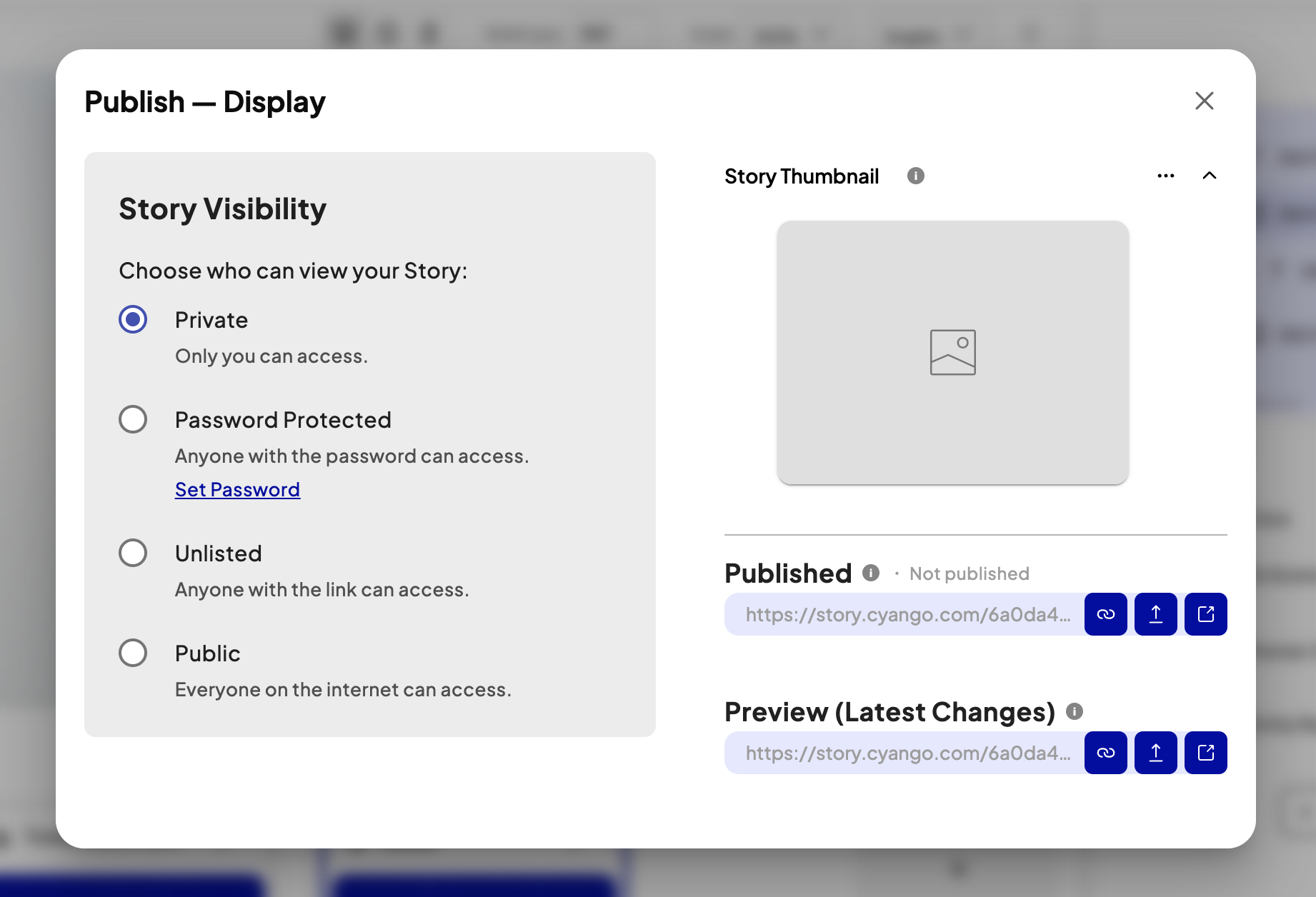
- Click Publish in the top bar.
- Review the story title and thumbnail in the publish dialog.
- Set visibility:
- Public — listed on Cyango Explore and anyone with the link can access.
- Password-protected — visitors need a password.
- Click Publish. The shareable URL appears.
Share as a link
Copy the story URL from the Publish dialog or from the Share panel. The URL format is cyango.com/v/[story-id]. You can customise it with URL parameters, for example, to jump to a specific scene or set a language on load.
Embed in a website
Click Share › Embed to copy an iframe snippet. Paste it into any website or CMS. The experience scales to fill the iframe. Set width and height in the snippet or let CSS control the size.
QR code
Click Share › QR Code to download a QR image. Scan it to open the story on any device. This works well for print materials, events, or retail displays.
SEO settings
In Story Settings › SEO, set a custom title, description, and social thumbnail. Search engines and social previews use these when the link is shared.
PWA and offline
Viewers can install your story as a Progressive Web App on their phone or tablet. Once installed, the story loads fully offline after the first visit. Prompt them to install from the browser's "Add to home screen" option. No App Store required.
Publish to VIVERSE
You can list the same story on VIVERSE without rebuilding it elsewhere. VIVERSE loads your published Cyango version each time someone opens it, so republishing on Cyango and then on VIVERSE keeps both listings in sync.
- Publish on Cyango first — VIVERSE needs a live published story to load.
- Open Publish › Publish to VIVERSE from the story header, or choose Publish to VIVERSE from a story card menu in Stories.
- Enter your VIVERSE email and password. Credentials are used once for the upload job and are never stored by Cyango. If you normally sign in with Google, Apple, or Steam, add a password to the same account at account.htcvive.com (Login & Security).
- Click Publish to VIVERSE. Cyango builds a VIVERSE player bundle and uploads it to your account. You receive an email when the job finishes.
- Set thumbnail, categories, and age rating in VIVERSE Studio — every upload is reviewed there.
Viewer theme and XR input
Open Story Settings › Theme to control chrome around the published player: navigation buttons, colours, the main action button, and XR input visuals.
Under XR Input, hide the 3D VR controller or hand-tracking models while keeping interaction rays active. Useful when controller meshes clash with your scene art or you want a cleaner immersive view.
Export and self-host
Go to Story Settings › Export to download a ZIP of your entire story. Self-host it on your own CDN, server, or SharePoint without any dependency on Cyango. The exported bundle includes all assets and the viewer runtime.
Note: Export is available on Pro plans and above.